 DIMENSI
Zoom Meeting summary with AI: Jimat Masa Catat Minit, Tetapi Semak Siapa Terima Ringkasan
Mesyuarat Zoom anda baru tamat. Beberapa minit kemudian, ringkasan mesyuarat yang dijana AI sudah sampai ke peti e-mel semua jemputan, termasuk wakil syarikat luar. Ringkasan itu mungkin menyebut angka bajet, nama pegawai atau keputusan yang belum diumumkan. Ramai pengguna tidak sedar perkara ini kerana mereka tidak pernah menyemak tetapan asal.
Zoom ada ciri Meeting summary with AI yang meringkaskan perbincangan mesyuarat secara automatik. Ciri ini memang menjimatkan masa. Namun anda perlu tahu siapa yang menerima ringkasan itu. Berita baiknya, anda boleh mengawal tetapan ini sendiri melalui portal web Zoom dalam beberapa minit.
Apa fungsinya
Meeting summary with AI menghasilkan ringkasan mesyuarat secara automatik. Anda tidak perlu mencatat minit mesyuarat dari awal. Bahasa Melayu disenaraikan oleh Zoom sebagai bahasa yang disokong untuk ringkasan mesyuarat.
Tetapan ciri ini terletak di bawah menu Zoom AI dalam portal web Zoom (laman Zoom yang dibuka melalui pelayar web). Di situ anda boleh menghidupkan atau mematikan ciri ini. Anda juga boleh memilih siapa yang menerima ringkasan secara automatik selepas mesyuarat.
Untuk pengetahuan anda, halaman kertas putih (dokumen penerangan rasmi) AI Zoom kini menggunakan nama “ZoomMate”. Artikel sokongan Zoom pula masih memakai label “Meeting summary with AI”. Artikel ini menggunakan label menu yang anda lihat dalam tetapan.
Ciri utama
- Togol hidup atau mati: anda boleh menghidupkan atau mematikan Meeting summary with AI di bawah bahagian Meeting dalam tetapan Zoom AI.
- Pilihan penerima: tetapan Automatically share summary with ada empat pilihan. Pilihan itu ialah Only me (meeting host); Only meeting host, co-hosts, and alternative hosts; Only meeting host and meeting invitees in our organization; dan All meeting invitees including those outside of our organization.
- Only me menghentikan perkongsian automatik: jika anda memilih Only me, ringkasan tidak lagi dikongsi secara automatik untuk mesyuarat baharu.
- E-mel tanpa teks ringkasan: ada pilihan untuk menghantar e-mel makluman tanpa teks ringkasan. E-mel itu hanya mengandungi pautan yang memerlukan penerima log masuk.
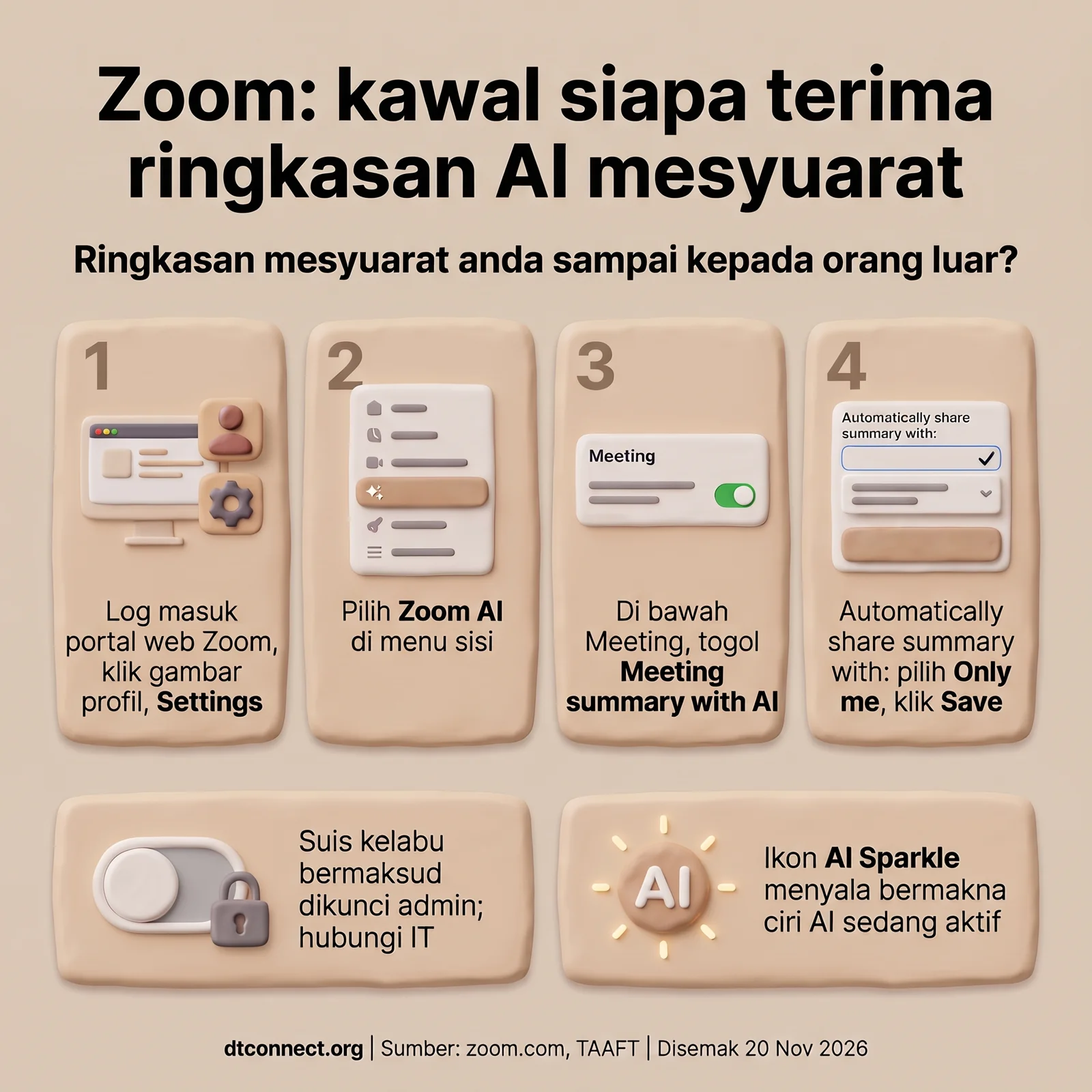
- Ikon AI Sparkle: peserta melihat ikon AI Sparkle yang menyala di penjuru kanan atas tetingkap mesyuarat apabila ringkasan atau Meeting Questions aktif.
- Sokongan Bahasa Melayu: Malay disenaraikan untuk meeting summary, in-meeting questions, chat summary, call summary dan Docs.
Harga
Ciri ini hanya untuk pelan berbayar. Zoom tidak menyenaraikan pelan Basic (pelan percuma) dalam prasyarat ciri ini.
- Pelan yang disenaraikan: Zoom Workplace Pro, Pro Plus, Business, Business Plus, Enterprise, Enterprise Plus atau Enterprise Bundle.
- Pelan Basic: tidak disenaraikan dalam prasyarat. Jika anda menggunakan akaun percuma, anda mungkin tidak melihat tetapan ini.
- Kebenaran admin: tidak diperlukan, kecuali jika tetapan itu dikunci oleh admin.
Artikel ini tidak menyatakan harga pelan. Semak dengan unit IT anda pelan Zoom yang digunakan oleh organisasi anda.
Harga disemak pada 20 November 2026 dan mungkin berubah.
Cara bermula
- Log masuk ke portal web Zoom.
- Klik gambar profil anda, kemudian klik Settings.
- Klik Zoom AI di menu sisi.
- Di bawah Meeting, togol Meeting summary with AI. Sahkan dengan memilih Enable atau Disable.
- Pada Automatically share summary with, pilih Only me (meeting host), kemudian klik Save.
Had dan perkara yang perlu diberi perhatian
- Togol berwarna kelabu: ini bermaksud tetapan dikunci di peringkat kumpulan atau akaun. Hubungi admin atau unit IT anda.
- Tetapan Only me untuk mesyuarat baharu: pilihan ini mematikan perkongsian automatik untuk mesyuarat baharu. Semak semula jika anda sudah menjadualkan mesyuarat sebelum menukar tetapan.
- Ringkasan masih boleh tersilap: ringkasan dijana oleh AI. Baca semula sebelum anda mengedarkannya, terutama nama orang, angka dan keputusan mesyuarat.
- Data latihan AI: Zoom menyatakan ia tidak menggunakan audio, video, chat, perkongsian skrin, lampiran, keputusan undian, kandungan whiteboard dan reaksi pelanggan untuk melatih model AI Zoom atau pihak ketiga.
- Model pihak ketiga: Zoom boleh menggunakan model pihak ketiga seperti Anthropic dan OpenAI. Menurut Zoom, penyedia ini mempunyai dasar tanpa simpanan data (zero data retention), dengan pengecualian terhad untuk keselamatan.
- Kesan tetapan Meeting transcript: jika admin mematikan dan mengunci tetapan Meeting transcript, data sementara dibuang selepas ringkasan siap. Ringkasan itu tidak boleh dijana semula.
- Hak peserta: peserta boleh meminta hos mematikan ciri ini dan memadam aset AI (hasil yang dijana AI) yang sudah dihasilkan.
- Bahasa Melayu tidak untuk semua ciri: Malay tidak disenaraikan untuk smart recording, email compose dan whiteboard.
Sesuai untuk siapa
- Pegawai yang selalu menjadi hos mesyuarat Zoom bersama pihak luar.
- Setiausaha dan pembantu tadbir yang menyediakan minit mesyuarat.
- Admin IT yang mahu menetapkan dasar ringkasan AI untuk seluruh organisasi.
- Pekerja pejabat yang membincangkan maklumat dalaman dalam mesyuarat dalam talian.
Ia kurang sesuai jika anda hanya menggunakan akaun Zoom Basic yang percuma, kerana pelan itu tidak disenaraikan dalam prasyarat. Ia juga kurang sesuai jika dasar jabatan anda tidak membenarkan kandungan mesyuarat diproses oleh perkhidmatan AI.
Kesimpulan
Meeting summary with AI dalam Zoom boleh menjimatkan masa mencatat minit. Namun tetapan penerima perlu disemak supaya ringkasan tidak terus sampai kepada orang luar. Ingat tiga perkara: pilih Only me pada Automatically share summary with, hubungi admin jika togol berwarna kelabu, dan semak ringkasan sebelum mengedarkannya. Buka tetapan Zoom anda hari ini.
Sumber
- Artikel sokongan rasmi Zoom: mengurus Meeting summary with AI
- Kertas putih rasmi AI Zoom: tadbir urus data dan privasi
- Kertas putih rasmi AI Zoom: ketelusan dan notis kepada pengguna
- Artikel sokongan rasmi Zoom: bahasa yang disokong oleh ciri AI
- Kertas putih rasmi AI Zoom: halaman utama
Artikel ini bebas dan tidak ditaja. Ciri dan harga disemak pada 20 November 2026 dan mungkin berubah.
Read this article in English
Your Zoom meeting has just ended. A few minutes later, an AI generated meeting summary has already reached the inbox of every invitee, including representatives from outside companies. The summary may mention budget figures, names of officers or decisions that have not been announced. Many users do not notice this because they have never checked the default settings.
Zoom has a Meeting summary with AI feature that summarises meeting discussions automatically. This feature does save time. But you need to know who receives the summary. The good news is that you can control this setting yourself through the Zoom web portal in a few minutes.
What it does
Meeting summary with AI produces a meeting summary automatically. You do not need to take meeting minutes from scratch. Malay is listed by Zoom as a supported language for meeting summaries.
The settings for this feature are under the Zoom AI menu in the Zoom web portal (the Zoom site opened in a web browser). There you can turn the feature on or off. You can also choose who receives the summary automatically after a meeting.
For your information, Zoom’s AI whitepaper (an official explanatory document) now uses the name “ZoomMate”. Zoom’s support articles still use the label “Meeting summary with AI”. This article uses the menu label you see in the settings.
Key features
- On or off toggle: you can turn Meeting summary with AI on or off under the Meeting section of the Zoom AI settings.
- Recipient options: the Automatically share summary with setting has four options. They are Only me (meeting host); Only meeting host, co-hosts, and alternative hosts; Only meeting host and meeting invitees in our organization; and All meeting invitees including those outside of our organization.
- Only me stops automatic sharing: if you choose Only me, summaries are no longer shared automatically for new meetings.
- Email without summary text: there is an option to send notification emails without the summary text. The email only contains a link that requires the recipient to sign in.
- AI Sparkle icon: participants see a lit AI Sparkle icon in the top right corner of the meeting window when summaries or Meeting Questions are active.
- Malay support: Malay is listed for meeting summary, in-meeting questions, chat summary, call summary and Docs.
Price
This feature is for paid plans only. Zoom does not list the Basic plan (the free plan) in the prerequisites for this feature.
- Listed plans: Zoom Workplace Pro, Pro Plus, Business, Business Plus, Enterprise, Enterprise Plus or Enterprise Bundle.
- Basic plan: not listed in the prerequisites. If you use a free account, you may not see this setting.
- Admin permission: not required, unless the setting has been locked by an admin.
This article does not state plan prices. Check with your IT unit which Zoom plan your organisation uses.
Prices were checked on 20 November 2026 and may change.
Getting started
- Sign in to the Zoom web portal.
- Click your profile picture, then click Settings.
- Click Zoom AI in the side menu.
- Under Meeting, toggle Meeting summary with AI. Confirm by choosing Enable or Disable.
- Under Automatically share summary with, choose Only me (meeting host), then click Save.
Limits and things to watch
- Grey toggle: this means the setting is locked at the group or account level. Contact your admin or IT unit.
- Only me applies to new meetings: this option turns off automatic sharing for new meetings. Check again if you scheduled meetings before changing the setting.
- Summaries can still be wrong: summaries are generated by AI. Read them again before you share them, especially names of people, figures and meeting decisions.
- AI training data: Zoom states that it does not use customer audio, video, chat, screen sharing, attachments, poll results, whiteboard content and reactions to train Zoom or third party AI models.
- Third party models: Zoom may use third party models such as Anthropic and OpenAI. According to Zoom, these providers have a zero data retention policy, with limited exceptions for safety.
- Effect of the Meeting transcript setting: if an admin turns off and locks the Meeting transcript setting, temporary data is deleted after the summary is completed. The summary cannot be generated again.
- Participant rights: participants can ask the host to turn the feature off and delete AI assets (output generated by AI) that have already been produced.
- Malay is not for every feature: Malay is not listed for smart recording, email compose and whiteboard.
Who it is for
- Officers who often host Zoom meetings with outside parties.
- Secretaries and administrative assistants who prepare meeting minutes.
- IT admins who want to set an AI summary policy for the whole organisation.
- Office workers who discuss internal information in online meetings.
It is less suitable if you only use a free Zoom Basic account, because that plan is not listed in the prerequisites. It is also less suitable if your department’s policy does not allow meeting content to be processed by AI services.
Conclusion
Meeting summary with AI in Zoom can save time on taking minutes. But the recipient setting needs to be checked so that summaries do not go straight to outsiders. Remember three things: choose Only me under Automatically share summary with, contact your admin if the toggle is grey, and check the summary before sharing it. Open your Zoom settings today.
Sources
- Official Zoom support article: managing Meeting summary with AI
- Official Zoom AI whitepaper: data governance and privacy
- Official Zoom AI whitepaper: user transparency and notice
- Official Zoom support article: languages supported by AI features
- Official Zoom AI whitepaper: main page
This article is independent and not sponsored. Features and prices were checked on 20 November 2026 and may change.