 DIMENSI
Gemini dalam Google Docs: Cara Draf Laporan dan SOP Lebih Cepat
Ramai pekerja pejabat sudah menghadiri kursus AI dan menerima sijil. Namun pada hari Isnin, kerja yang sama masih menunggu: laporan mingguan, SOP (prosedur operasi standard) yang perlu dikemas kini dan memo yang perlu ditulis semula. Kebanyakan dokumen ini masih ditaip dari kosong. Ada juga yang mengambil jalan pintas dengan menyalin dokumen kerja ke mana-mana chatbot awam. Cara itu berisiko kerana anda mungkin berkongsi maklumat organisasi di luar sistem yang dibenarkan.
Jika organisasi anda sudah menggunakan Google Workspace, ada pilihan yang lebih dekat dengan kerja harian anda, iaitu Gemini dalam Google Docs. Artikel ini menerangkan apa yang ia boleh buat, siapa yang boleh menggunakannya dan perkara yang perlu anda semak dahulu.
Apa fungsinya
Gemini dalam Google Docs ialah pembantu AI yang terbina dalam Google Docs. Menurut halaman bantuan rasmi Google, ia boleh menulis draf dan menyunting teks menggunakan maklumat daripada fail Drive, Chat, Gmail dan web. Anda tidak perlu menyalin teks ke aplikasi lain. Arahan ditaip terus di dalam dokumen, dan cadangan Gemini muncul dalam dokumen yang sama.
Setiap cadangan boleh diterima atau ditolak satu per satu. Anda juga boleh menerima semua (Accept all) atau menolak semua (Reject all) sekali gus. Ini bermakna keputusan akhir tetap di tangan anda.
Ciri utama
- Sunting dengan arahan. Klik ikon Gemini dan taip arahan di bar bawah. Untuk satu bahagian sahaja, sebut nama bahagian itu dalam arahan anda. Untuk seluruh dokumen, beri arahan yang lebih umum.
- Refine untuk teks terpilih. Pilih teks, klik Refine pada bar terapung, kemudian pilih Rephrase, Shorten atau Summarize. Di bawah More ada pilihan seperti Elaborate, More formal, More casual dan Bulletize (tukar kepada senarai titik).
- Rujuk fail lain. Klik Sources, kemudian Add from Drive, atau taip “@” untuk mencari fail. Ini berguna jika laporan anda perlu merujuk minit mesyuarat atau data dalam fail lain.
- Padan gaya penulisan. Bagi akaun peribadi, ciri padanan gaya penulisan hanya tersedia melalui Google Workspace Experiments, iaitu program penguji untuk akaun peribadi.
Harga
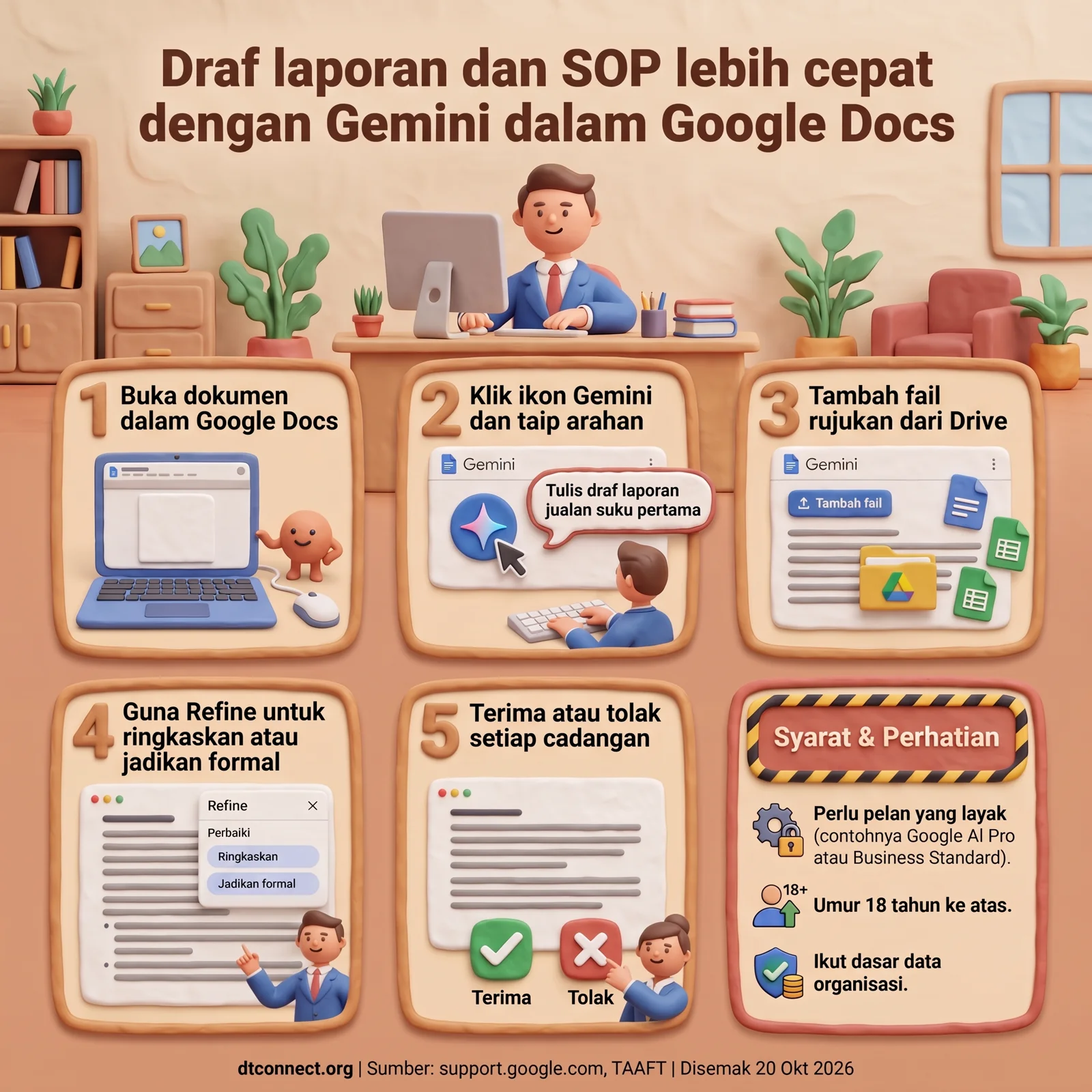
Gemini dalam Google Docs bukan ciri percuma untuk semua akaun. Menurut Google, ciri ini memerlukan pelan Google Workspace atau Google AI yang layak:
- Akaun peribadi: Google AI Pro dan Google AI Ultra. Google AI Plus tidak disenaraikan untuk ciri Docs.
- Akaun kerja atau sekolah: Business Standard, Business Plus, Enterprise Standard dan Enterprise Plus. Business Starter, Enterprise Starter dan edisi Frontline tidak disenaraikan untuk ciri Docs.
Direktori There’s An AI For That (TAAFT) menyenaraikan Gemini sebagai Freemium, tetapi senarai itu merujuk kepada Gemini secara umum, bukan khusus ciri dalam Docs. Semak pelan akaun anda sebelum bergantung pada ciri ini. Harga disemak pada 20 Oktober 2026 dan mungkin berubah.
Cara bermula
- Buka dokumen dalam Google Docs.
- Klik ikon Gemini dan taip arahan di bar bawah, contohnya “draf SOP tuntutan perjalanan dalam lima langkah”.
- Jika perlu, klik Sources dan tambah fail rujukan dari Drive.
- Pilih teks yang sudah ada dan guna Refine untuk meringkaskan atau menjadikannya lebih formal.
- Baca setiap cadangan, kemudian terima atau tolak. Semak fakta, nama dan angka sebelum dokumen dihantar.
Had dan perkara yang perlu diberi perhatian
- Umur dan bahasa. Pengguna mesti berumur 18 tahun ke atas. Google juga menyatakan sesetengah ciri AI mungkin tidak tersedia dalam bahasa anda.
- Data organisasi. Bagi akaun kerja atau sekolah, Google menyatakan interaksi dengan Gemini dalam aplikasi Workspace kekal dalam organisasi, dan kandungan tidak digunakan untuk latihan model di luar domain tanpa kebenaran. Walaupun begitu, ikut dasar data organisasi anda sendiri.
- Draf, bukan dokumen akhir. AI boleh membuat silap. Anda tetap bertanggungjawab ke atas isi laporan atau SOP yang dihantar.
- Pelan yang layak. Jika organisasi anda menggunakan Business Starter, ciri Docs ini tidak disenaraikan untuk pelan tersebut.
Sesuai untuk siapa
Gemini dalam Google Docs sesuai untuk pegawai pentadbiran, eksekutif dan penyelia yang menulis laporan, SOP dan memo setiap minggu, dan yang organisasinya sudah melanggan pelan Google Workspace yang layak. Ia juga sesuai untuk pengguna peribadi yang melanggan Google AI Pro atau Google AI Ultra.
Kesimpulan
Gemini dalam Google Docs membawa AI ke tempat kerja sebenar berlaku, iaitu di dalam dokumen. Mulakan dengan satu tugas kecil minggu ini, contohnya meringkaskan laporan yang panjang atau menulis draf pertama SOP. Semak dahulu sama ada akaun anda sudah ada Gemini, dan pastikan anda mengikut dasar data organisasi.
Sumber
- Bantuan Google Docs, Write and edit with Gemini in Docs: support.google.com/docs/answer/13951448
- Bantuan Google, Get started with Google Workspace with Gemini: support.google.com/docs/answer/13952129
- Senarai Gemini di There’s An AI For That: https://theresanaiforthat.com/ai/gemini/
Artikel ini bebas dan tidak ditaja. Ciri dan harga disemak pada 20 Oktober 2026 dan mungkin berubah.
Read this article in English
Gemini in Google Docs: Draft Reports and SOPs Faster
Many office workers have attended an AI course and collected a certificate. Yet on Monday the same work is still waiting: the weekly report, an SOP (standard operating procedure) that needs updating and a memo that needs rewriting. Most of these documents are still typed from scratch. Some people take a shortcut and paste work documents into any public chatbot. That is risky, because you may be sharing organisational information outside approved systems.
If your organisation already uses Google Workspace, there is an option closer to your daily work: Gemini in Google Docs. This article explains what it can do, who can use it and what to check first.
What it does
Gemini in Google Docs is an AI assistant built into Google Docs. According to Google’s official help page, it can draft and revise text using information from your Drive files, Chat, Gmail and the web. You do not need to copy text into another app. You type the instruction inside the document, and Gemini’s suggestions appear in the same document.
You can accept or reject each suggestion one by one, or use Accept all or Reject all. The final decision stays with you.
Key features
- Edit with a prompt. Click the Gemini icon and type a prompt in the bottom bar. To target one section, name it in the prompt. For the whole document, use a broader prompt.
- Refine selected text. Select text, click Refine on the floating bar, then choose Rephrase, Shorten or Summarize. Under More you will find options such as Elaborate, More formal, More casual and Bulletize.
- Reference other files. Click Sources, then Add from Drive, or type “@” to search for a file. This helps when a report needs to refer to meeting notes or data in another file.
- Match a writing style. For personal accounts, style matching is available only through Google Workspace Experiments, a trusted tester programme for personal accounts.
Pricing
Gemini in Google Docs is not free for every account. According to Google, it requires an eligible Google Workspace or Google AI plan:
- Personal accounts: Google AI Pro and Google AI Ultra. Google AI Plus is not listed for Docs features.
- Work or school accounts: Business Standard, Business Plus, Enterprise Standard and Enterprise Plus. Business Starter, Enterprise Starter and Frontline editions are not listed for Docs features.
There’s An AI For That (TAAFT) lists Gemini as Freemium, but that listing covers Gemini in general, not the Docs feature specifically. Check your account plan before relying on it. Pricing was checked on 20 October 2026 and may change.
How to get started
- Open a document in Google Docs.
- Click the Gemini icon and type a prompt in the bottom bar, for example “draft a travel claim SOP in five steps”.
- If needed, click Sources and add reference files from Drive.
- Select existing text and use Refine to summarise it or make it more formal.
- Read each suggestion, then accept or reject it. Check facts, names and numbers before you send the document.
Limitations and things to watch
- Age and language. Users must be 18 or over. Google also says some AI features may not be available in your language.
- Organisational data. For work or school accounts, Google states that interactions with Gemini in Workspace apps stay within your organisation, and that content is not used for model training outside your domain without permission. Even so, follow your own organisation’s data policy.
- A draft, not the final document. AI can make mistakes. You remain responsible for what your report or SOP says.
- Eligible plan. If your organisation uses Business Starter, these Docs features are not listed for that plan.
Who it is for
Gemini in Google Docs suits administrative officers, executives and supervisors who write reports, SOPs and memos every week, and whose organisation already subscribes to an eligible Google Workspace plan. It also suits personal users on Google AI Pro or Google AI Ultra.
Verdict
Gemini in Google Docs brings AI to where the work actually happens: inside the document. Start with one small task this week, such as summarising a long report or writing the first draft of an SOP. First check whether your account already has Gemini, and make sure you follow your organisation’s data policy.
Sources
- Google Docs Help, Write and edit with Gemini in Docs: support.google.com/docs/answer/13951448
- Google Help, Get started with Google Workspace with Gemini: support.google.com/docs/answer/13952129
- Gemini on There’s An AI For That: https://theresanaiforthat.com/ai/gemini/
This article is independent and not sponsored. Features and prices were checked on 20 October 2026 and may change.