 DIMENSI
Clipchamp Autocaptions: Sari Kata Video Percuma, Tetapi Bahasa Melayu Tidak Dinamakan
Jabatan anda baru merakam video taklimat untuk staf baharu. Ketua mahu video itu ada sari kata sebelum dikongsi minggu ini. Anda cuba menaip sari kata satu per satu sambil memutar video berulang kali. Kerja ini boleh mengambil masa berjam-jam.
Sari kata membantu orang yang menonton tanpa bunyi, contohnya di tempat awam atau di meja pejabat. Microsoft Clipchamp, aplikasi suntingan video Microsoft, ada ciri autocaptions yang boleh membantu. Namun sari kata yang dijana mesin tetap perlu disemak sebelum video disiarkan.
Apa fungsinya
Autocaptions menukar pertuturan dalam fail video atau audio kepada sari kata (teks yang muncul di bawah video). Anda tidak perlu menaip dari awal.
Selepas sari kata dijana, transkrip (teks bertulis daripada percakapan) boleh disunting dalam tab captions. Anda juga boleh memuat turun transkrip itu sebagai fail .SRT (fail teks sari kata yang boleh dibuka oleh banyak aplikasi video).
Ciri ini boleh digunakan dengan akaun peribadi dan akaun kerja atau sekolah. Microsoft menyatakan langkah untuk akaun peribadi mungkin berbeza sedikit.
Ciri utama
- Sari kata automatik: suara dalam video atau audio ditukar kepada sari kata tanpa anda menaipnya.
- Boleh disunting: anda boleh membetulkan perkataan yang salah dalam tab captions.
- Muat turun fail .SRT: transkrip boleh disimpan sebagai fail .SRT untuk kegunaan lain.
- Diproses secara automatik: audio diproses oleh perkhidmatan pengecaman pertuturan automatik Microsoft (Azure Cognitive Services) tanpa campur tangan manusia.
- Data sari kata milik anda: menurut Microsoft, data sari kata disimpan bersama projek dan hanya boleh diakses oleh anda.
- Akaun peribadi dan kerja: boleh digunakan dengan akaun peribadi, serta akaun kerja atau sekolah.
Harga
Microsoft menyatakan autocaptions percuma untuk semua pengguna, termasuk pengguna percuma dan pelanggan berbayar.
- Pelan percuma: memberi eksport tanpa tera air (watermark) tanpa had, sehingga kualiti 1080p HD.
- Premium: termasuk eksport 4K, media stok premium, penapis dan kesan premium, kit jenama (brand kit) dan sandaran kandungan. Halaman pelan yang disemak tidak memaparkan harga Premium.
Harga disemak pada 19 November 2026 dan mungkin berubah.
Cara bermula
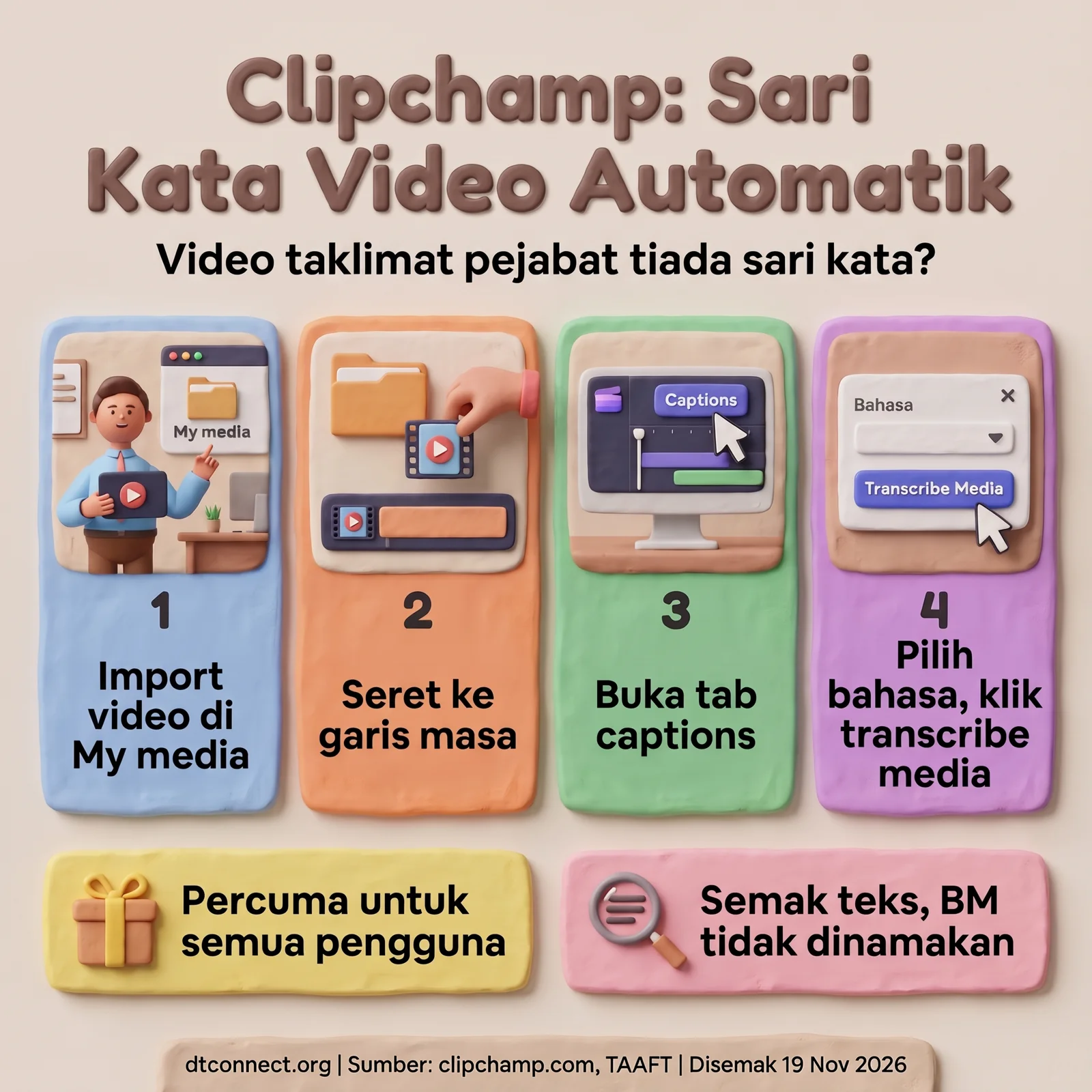
- Buka Clipchamp dan import video anda melalui My media.
- Seret video itu ke garis masa (timeline, iaitu ruang suntingan di bahagian bawah skrin).
- Klik ikon captions, atau buka tab captions pada property panel (panel tetapan di sebelah kanan).
- Pilih bahasa video anda, kemudian klik transcribe media.
- Semak teks dan betulkan kesilapan. Klik download captions jika anda mahu fail .SRT, kemudian eksport video.
Had dan perkara yang perlu diberi perhatian
- Bahasa Melayu tidak dinamakan: halaman rasmi menyebut “many languages”, tetapi Bahasa Melayu tidak dinamakan pada halaman yang disemak. Cuba dengan klip pendek dahulu sebelum menggunakan video penuh.
- Satu bahasa bagi setiap video: hanya satu bahasa boleh ditranskrip bagi setiap video. Video yang bercampur bahasa mungkin tidak ditranskrip dengan baik.
- Perlu ada suara: ciri ini hanya untuk klip yang ada suara.
- Had penggunaan: Microsoft boleh mengehadkan transkripsi untuk mengelak penggunaan berlebihan.
- Sekatan rangkaian pejabat: tembok api (firewall, sistem keselamatan rangkaian) pejabat atau sambungan pelayar (browser extension) boleh menyekat perkhidmatan pertuturan. Jika ciri ini tidak berfungsi, hubungi unit IT anda.
- Semak sebelum siar: sari kata dijana mesin. Baca semula, terutama nama orang, nama jabatan dan angka.
- Video sulit: walaupun data sari kata hanya boleh diakses oleh anda, audio tetap diproses oleh perkhidmatan Microsoft. Jangan masukkan video sulit tanpa kebenaran jabatan.
Sesuai untuk siapa
- Pegawai komunikasi korporat yang menyediakan video taklimat atau pengumuman.
- Pegawai latihan yang membuat video tutorial untuk staf.
- Pekerja pejabat yang mahu video mudah difahami walaupun ditonton tanpa bunyi.
Ia kurang sesuai jika video anda menggunakan dua bahasa atau lebih, kerana hanya satu bahasa boleh ditranskrip bagi setiap video. Ia juga kurang sesuai jika rangkaian pejabat anda menyekat perkhidmatan pertuturan, atau jika dasar jabatan tidak membenarkan video dimuat naik ke perkhidmatan luar.
Kesimpulan
Autocaptions dalam Microsoft Clipchamp menukar suara dalam video kepada sari kata, boleh disunting dan boleh dimuat turun sebagai fail .SRT. Microsoft menyatakan ciri ini percuma untuk semua pengguna. Ingat tiga perkara: cuba klip pendek dahulu kerana Bahasa Melayu tidak dinamakan, semak teks sebelum siar, dan ikut dasar data jabatan. Mulakan dengan video yang tidak sulit.
Sumber
- Artikel bantuan rasmi Microsoft: cara menggunakan autocaptions dalam Clipchamp
- Blog rasmi Clipchamp: ciri auto captioning
- Artikel bantuan rasmi Microsoft: pelan berbayar Clipchamp
- Blog rasmi Clipchamp: sari kata AI untuk video kerja
Artikel ini bebas dan tidak ditaja. Ciri dan harga disemak pada 19 November 2026 dan mungkin berubah.
Read this article in English
Your department has just recorded a briefing video for new staff. Your boss wants it to have subtitles before it is shared this week. You try to type the subtitles one by one while replaying the video again and again. This work can take hours.
Subtitles help people who watch without sound, for example in public places or at an office desk. Microsoft Clipchamp, Microsoft’s video editing app, has an autocaptions feature that can help. But machine generated subtitles still need to be checked before the video is published.
What it does
Autocaptions turns speech in a video or audio file into captions (text that appears under the video). You do not need to type from scratch.
After the captions are generated, the transcript (written text from speech) can be edited in the captions tab. You can also download the transcript as an .SRT file (a caption text file that many video apps can open).
The feature works with personal accounts and work or school accounts. Microsoft notes that the steps for personal accounts may differ slightly.
Key features
- Automatic captions: speech in a video or audio is turned into captions without you typing it.
- Editable: you can fix wrong words in the captions tab.
- Download as .SRT: the transcript can be saved as an .SRT file for other uses.
- Processed automatically: audio is processed by Microsoft’s automatic speech recognition service (Azure Cognitive Services) without human involvement.
- Your caption data: according to Microsoft, caption data is stored with the project and only you can access it.
- Personal and work accounts: it can be used with personal accounts, as well as work or school accounts.
Price
Microsoft states that autocaptions is free for all users, including free users and paid subscribers.
- Free plan: gives unlimited watermark free exports, up to 1080p HD quality.
- Premium: includes 4K exports, premium stock media, premium filters and effects, a brand kit and content backup. The plans page checked does not show the Premium price.
Prices were checked on 19 November 2026 and may change.
Getting started
- Open Clipchamp and import your video through My media.
- Drag the video onto the timeline (the editing area at the bottom of the screen).
- Click the captions icon, or open the captions tab on the property panel (the settings panel on the right).
- Choose the language of your video, then click transcribe media.
- Check the text and fix any mistakes. Click download captions if you want an .SRT file, then export the video.
Limits and things to watch
- Malay is not named: the official pages mention “many languages”, but Malay is not named on the pages checked. Try a short clip first before using the full video.
- One language per video: only one language can be transcribed per video. Videos with mixed languages may not be transcribed well.
- Needs speech: this feature only works for clips that have speech.
- Usage limits: Microsoft may limit transcription to prevent excessive use.
- Office network blocks: an office firewall (network security system) or a browser extension can block the speech service. If the feature does not work, contact your IT unit.
- Check before publishing: captions are machine generated. Read them again, especially names of people, department names and numbers.
- Confidential videos: even though only you can access the caption data, the audio is still processed by a Microsoft service. Do not upload confidential videos without your department’s permission.
Who it is for
- Corporate communication officers who prepare briefing or announcement videos.
- Training officers who make tutorial videos for staff.
- Office workers who want videos that are easy to follow even when watched without sound.
It is less suitable if your video uses two or more languages, because only one language can be transcribed per video. It is also less suitable if your office network blocks the speech service, or if your department’s policy does not allow videos to be uploaded to outside services.
Conclusion
Autocaptions in Microsoft Clipchamp turns speech in a video into captions that can be edited and downloaded as an .SRT file. Microsoft states that the feature is free for all users. Remember three things: try a short clip first because Malay is not named, check the text before publishing, and follow your department’s data policy. Start with a video that is not confidential.
Sources
- Official Microsoft help article: How to use autocaptions in Clipchamp
- Official Clipchamp blog: auto captioning feature
- Official Microsoft help article: Clipchamp paid plans
- Official Clipchamp blog: AI captions for work videos
This article is independent and not sponsored. Features and prices were checked on 19 November 2026 and may change.